Here’s the thing about arriving in Korea with only Google Maps on your phone: you’re going to have a bad time. I’ve watched countless tourists standing on street corners, zooming in and out on Google Maps, trying to figure out why it won’t show them how to walk three blocks to their guesthouse. It’s not user error — Google Maps genuinely doesn’t work properly in Korea because of military security laws that prevent detailed map data from leaving the country.
This guide will show you how to use Naver Map in English from scratch. You’ll be navigating Seoul’s winding alleys like a local by the time you finish reading — I promise it’s easier than it sounds.
Table of Contents
Why Google Maps Doesn’t Work in Korea
Google Maps looks normal when you open it in Korea — the streets are there, businesses show up, you can see your blue dot moving around. But the moment you try to get walking directions, everything falls apart. You’ll get a straight line between two points instead of actual turn-by-turn navigation, or just a flat-out “route not available” message.
Korea’s Map Data Export Restrictions
The Korean government restricts the export of detailed geographic data for national security reasons — there’s still technically a war going on with North Korea, after all. Google’s navigation features require sending Korea’s map data to servers outside the country, which Korean law doesn’t allow. Naver Map keeps everything on domestic servers, so it works perfectly.
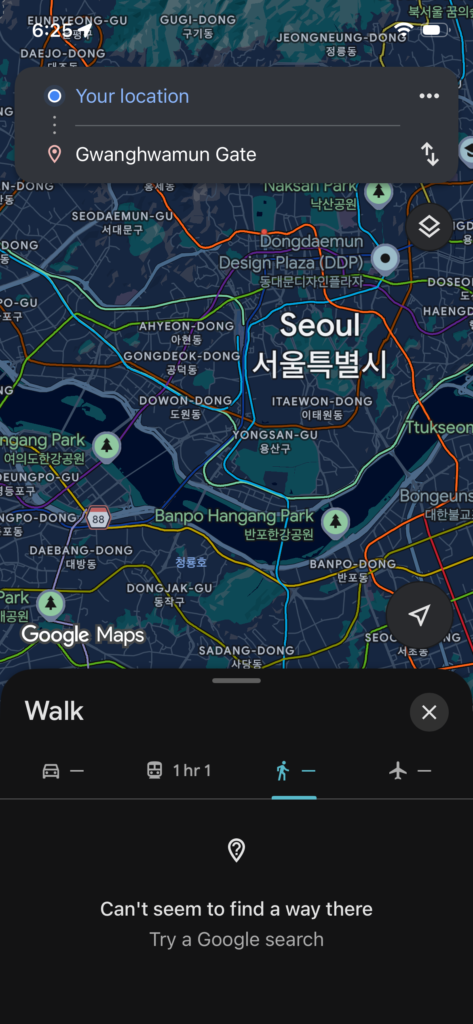
Here’s what specifically doesn’t work with Google Maps in Korea:
- Walking navigation: Completely broken. You won’t get step-by-step directions through neighborhoods.
- Real-time transit info: Bus arrival times are either missing or hours out of date.
- Satellite imagery: Deliberately degraded resolution, even in non-military areas.
- Local business data: That tiny restaurant in a back alley that has a line out the door? Google probably doesn’t know it exists.
What Apps Do Koreans Actually Use?
When Koreans need directions, they open either Naver Map or Kakao Map. Both apps have proper English interfaces now (thank god), complete real-time transit tracking, accurate walking routes, and restaurant reviews that’ll actually help you decide where to eat.
I’m focusing on Naver Map in this guide because it has the most comprehensive place data — Naver is Korea’s biggest search engine, so their database of restaurants, cafes, and shops is massive. Plus, the English version is genuinely well-translated, not just machine-translated gibberish.
Naver Map vs Google Maps Korea: What Actually Works
Quick comparison so you know what you’re getting:
| Feature | Google Maps | Naver Map |
|---|---|---|
| Walking Navigation | ❌ Not Working | ✅ Fully Supported |
| Real-Time Bus/Subway | ⚠️ Inaccurate | ✅ Perfectly Real-Time |
| Place Search Accuracy | ⚠️ Low | ✅ Very High |
| English Interface | ✅ Supported | ✅ Fully Supported |
| Local Reviews | ⚠️ Limited | ✅ Abundant Reviews |
Fair warning — you’ll still want to keep Google Maps installed for when you leave Korea. But while you’re here, Naver Map is the best navigation app for Korea tourists, hands down.
Installing Naver Map and Switching to English (Takes 1 Minute)
This whole setup process is genuinely fast — you’ll spend more time reading this section than actually doing it.
Step 1: Download the App
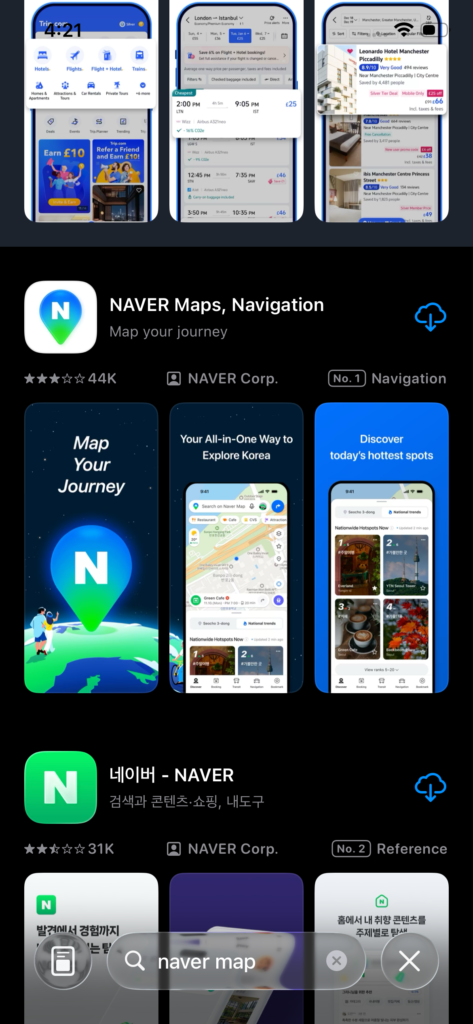
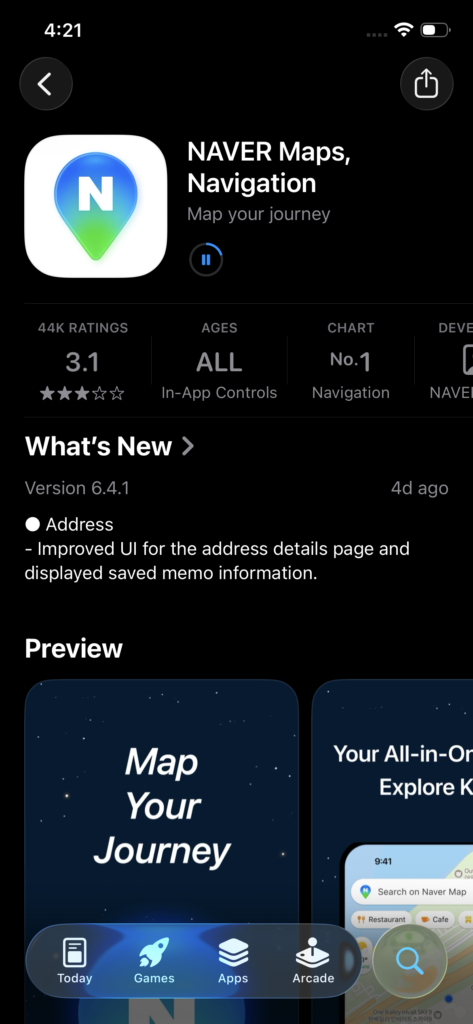
Open the App Store (iOS) or Google Play Store (Android) and search for “Naver Map”. Look for the green map pin icon and make sure the developer says NAVER Corp. Hit install.
One thing I always tell people: download this before you leave for Korea. Trying to install apps on airport wifi while you’re jet-lagged and just want to get to your hotel is miserable. Do it now while you’re reading this.
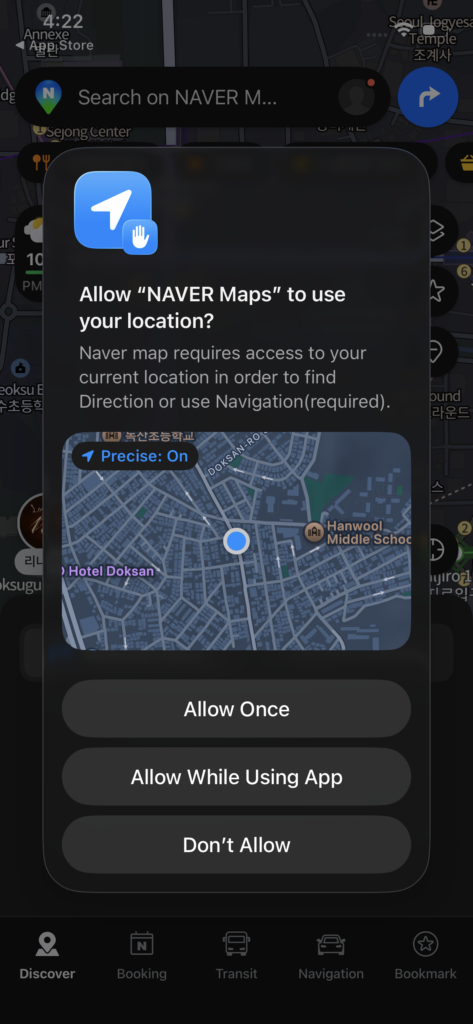
Step 2: Allow Location Access (You Really Need This)
Naver Map will ask for permission to use your location. Tap “Allow While Using App” at minimum, though I’d recommend “Always Allow” if you want the app to track your route while navigating.
Without location access, you can still search for places, but you won’t get directions from your current location or be able to see nearby restaurants — which kind of defeats the whole purpose. Don’t skip this step.
Do You Need a Naver Account?
Short answer: no, not for basic navigation. Long answer: it depends what you want to do.
You can search for places, get directions, and check real-time bus arrivals without logging in at all. But if you want to save places for later (super useful when planning your trip), you’ll need an account.
What Works Without an Account vs With One
Here’s the breakdown:
No login required:
- Searching for any location
- Getting walking/transit directions
- Seeing real-time bus and subway info
- Viewing restaurant details and reviews
Login required:
- Saving favorite places
- Creating custom lists (like “Seoul coffee shops I want to try”)
- Leaving reviews
- Seeing your navigation history
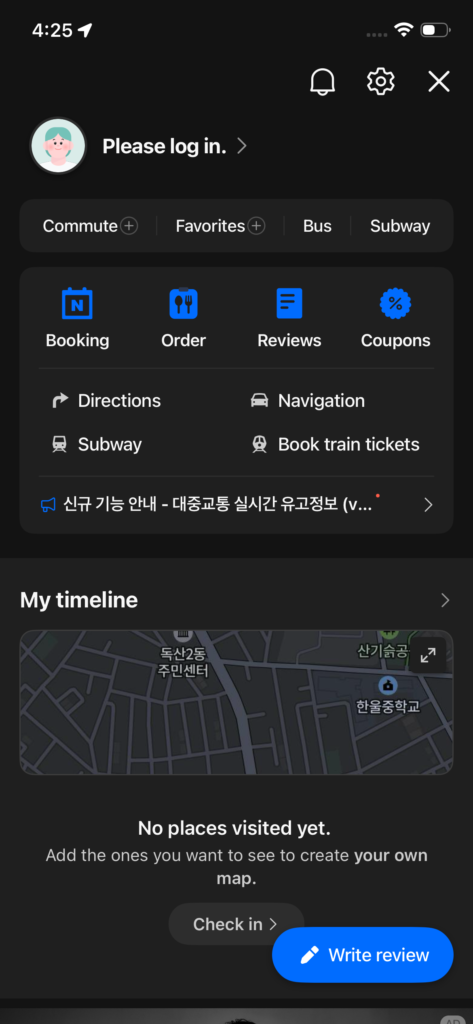
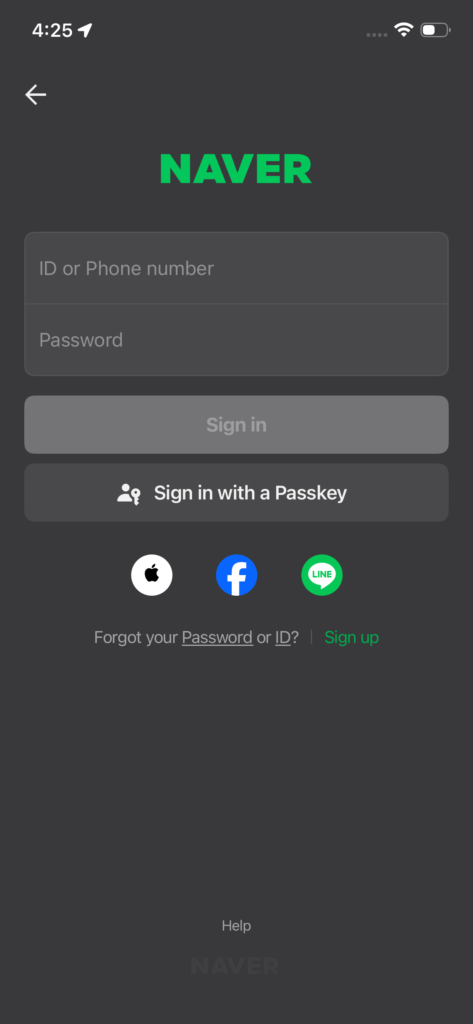
How to Create a Naver Account (If You Want One)
The easiest way is using social login — you don’t need to create a whole new username and password:
- Click the profile icon next to the search bar
- Hit Please log in.
- Choose Continue with Apple, Facebook or Line
- Authorize the connection and you’re done
How to Search for Places: English vs Phone Numbers
This is where Naver Map’s English setting tutorial really pays off. The search function is surprisingly smart, but there’s a trick that’ll save you tons of frustration.
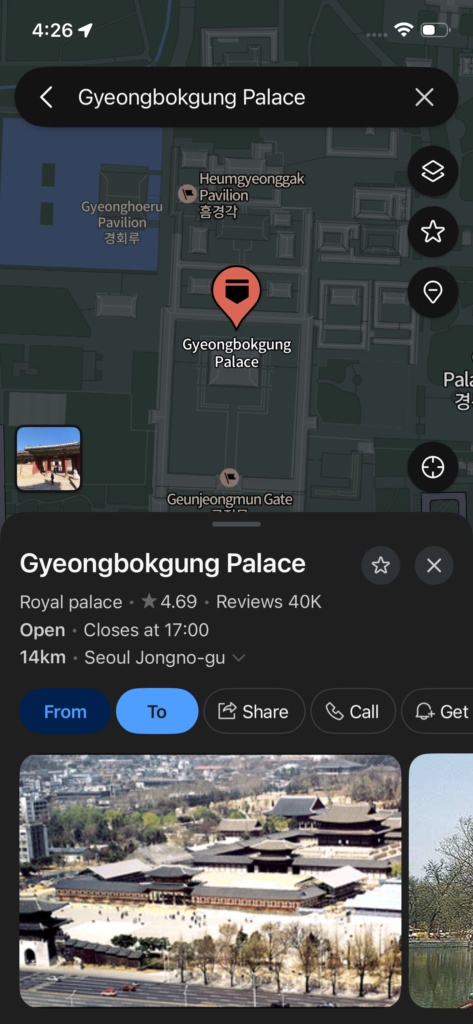
Does English Search Actually Work?
For major tourist spots, yeah, it works great. Type “Gyeongbokgung Palace” or “Namsan Tower” or “Dongdaemun Design Plaza” and you’ll get exactly what you want. The app recognizes English names for pretty much every significant landmark and tourist destination.
But here’s where it gets tricky — that amazing tteokbokki place your hostel owner recommended? The one that only has a Korean name? English search probably won’t find it. You’ll either get no results or a bunch of random places that aren’t what you’re looking for.
The Phone Number Trick (This Changed Everything for Me)
Every business in Korea has a phone number, and that number is linked to their exact location in Naver Map’s database. Instead of trying to spell out Korean restaurant names or addresses, just search for the phone number.
Here’s how it works: someone gives you a restaurant recommendation and you write down the phone number (it’ll be 10-11 digits, starting with 02 for Seoul, 051 for Busan, etc.). Open Naver Map, paste that number into the search bar, and the exact location pops up instantly.
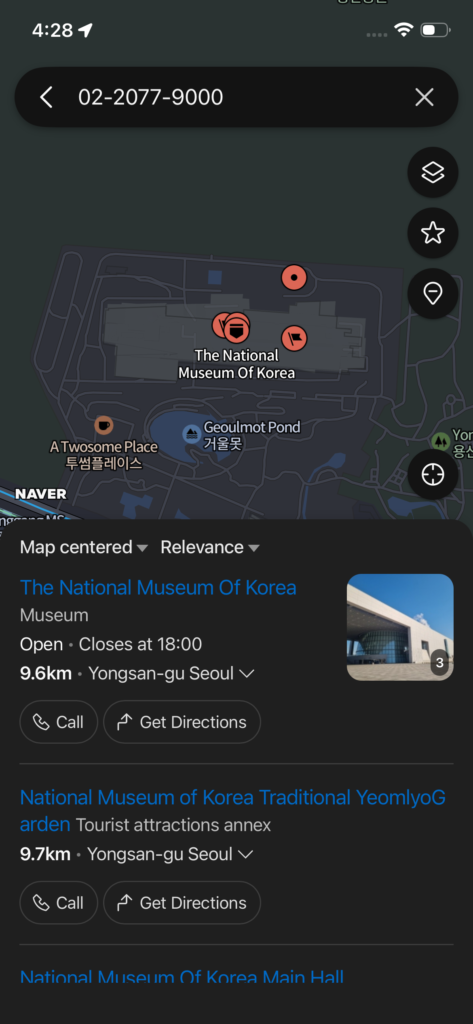
Example: searching “02-2077-9000” takes you straight to the National Museum of Korea. No typing Korean characters, no worrying about spelling, no confusion between similar place names.
This is especially clutch when you’re in a taxi and the driver doesn’t speak English — just show them the search result screen with the phone number and they’ll know exactly where to go.
Where to Find Phone Numbers
Most travel blogs and Instagram posts about Korean restaurants include phone numbers. Your hotel concierge will write them down for you. Even random cafes you walk past have their numbers on the door. Once you start looking, you’ll see them everywhere.
Using Walking Navigation in Korea’s Alleyways
Seoul’s coolest neighborhoods — Bukchon Hanok Village, Ikseon-dong, Mangwon-dong — are labyrinths of tiny alleys that twist and turn every few meters. Google Maps just gives up in these places, but Naver Map’s walking navigation handles them perfectly.
Setting Up a Walking Route
Here’s the step-by-step:
- Search for your destination (name or phone number)
- Tap the blue Get Directions button at the bottom
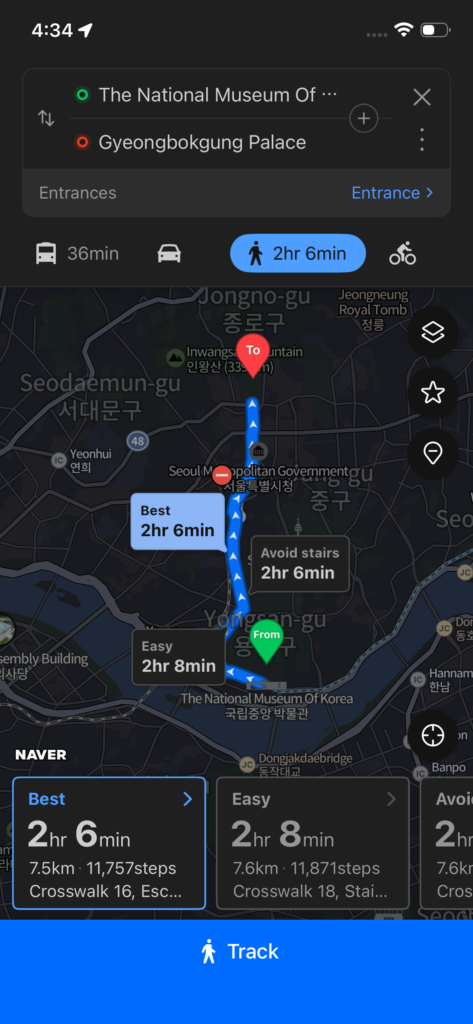
- You’ll see icons at the top — tap the walking person icon
- Naver shows you 2-3 route options with estimated times
- Pick the one you want and hit Track
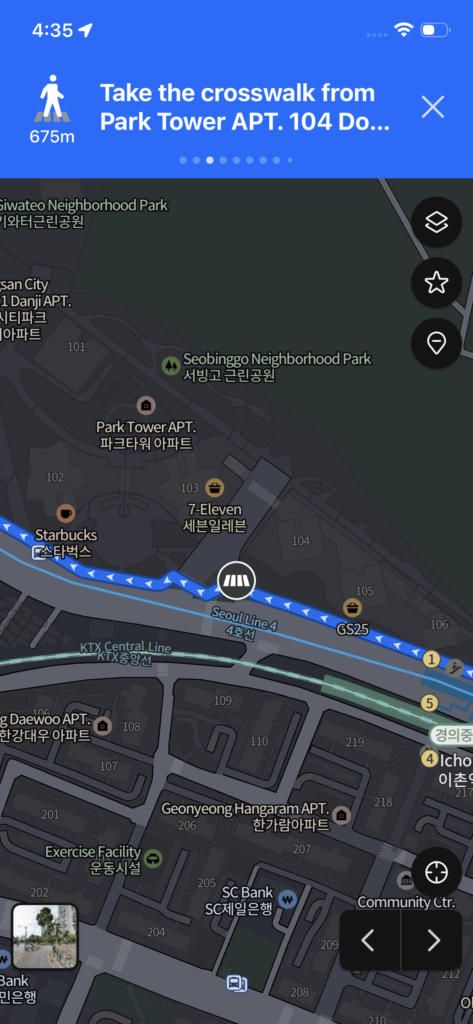
The app will now show you a blue line on the map with turn-by-turn directions. A little arrow shows which direction you’re facing (super helpful when you exit subway stations and have no idea which way is north).
Reading the Navigation Screen
The navigation interface shows:
- Distance to your next turn (in meters)
- Total time remaining
- Blue dots along your route marking where you’ll turn
- Voice prompts when you need to turn (though the English voice can be a bit robotic)
One more thing — if you miss a turn, the app recalculates automatically. I’ve wandered off-route plenty of times while distracted by street food, and Naver just quietly fixes the route without making a big deal about it.
Transit Directions Are Incredibly Detailed
When you select the subway/bus icon instead of walking, Naver Map shows you:
– Which subway exit to use (Seoul stations have like 12+ exits sometimes)
– Exactly which car to board for fastest transfers
– Real-time arrival info for buses (updated every few seconds)
– Total cost of the trip in Korean won
I’ll cover transit navigation in detail in the next guide, but just know that it’s absurdly comprehensive compared to what you’d get anywhere else.
Frequently Asked Questions
Can I use Naver Map offline?
Short answer: No. You absolutely need internet.
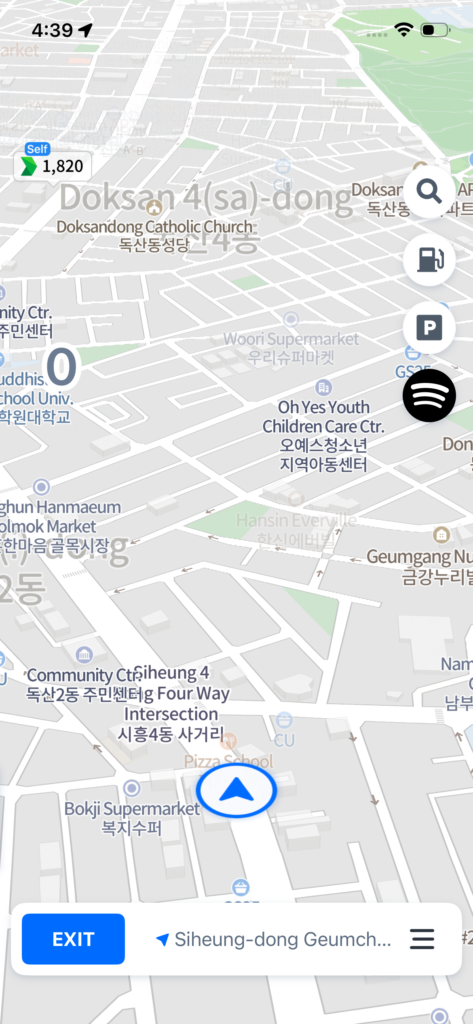
⚠️ The “Offline Map” Trap: You might dig into the app settings and find a button that says “Download maps by province.” Do not fall for this! That feature is strictly for downloading graphics for car driving navigation to save cellular data. If you download it, turn off your data, and try to search for a restaurant or get walking directions, the app will completely freeze. It does not work like Google Maps’ offline mode.
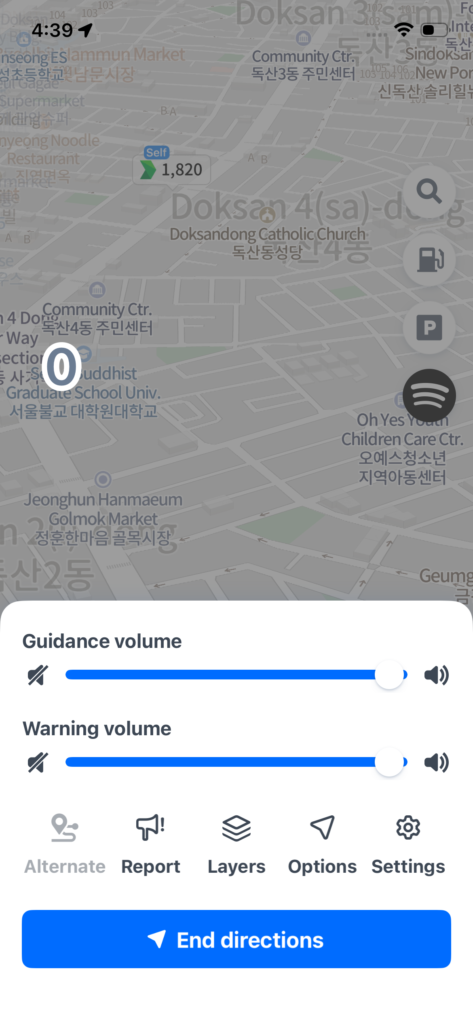
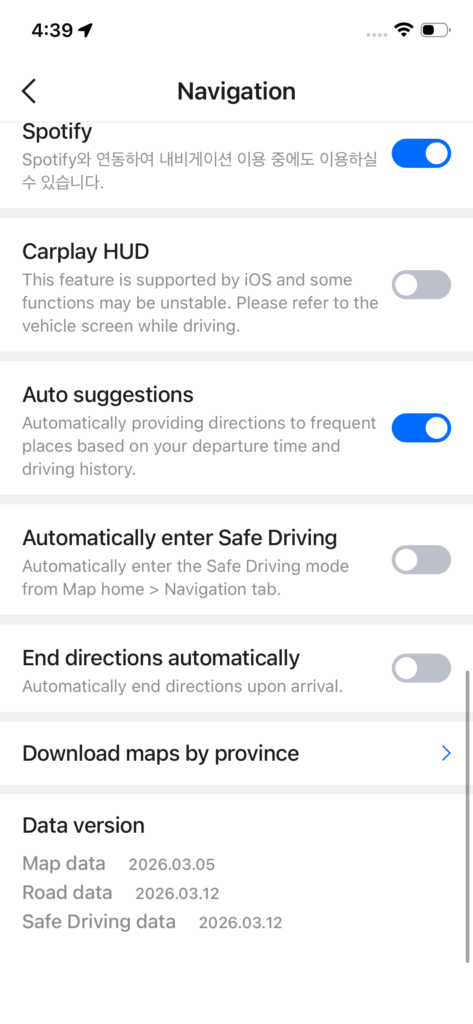
Do Future You a massive favor and secure an unlimited data eSIM, physical SIM, or portable WiFi before you leave the airport. (💡 Pro tip: You can book a tourist eSIM in advance at a discount right here [Insert Affiliate Link].)
Does Naver Map work outside Seoul?
Absolutely. Naver Map covers all of Korea with the same level of detail — Busan, Jeju Island, Gyeongju, Jeonju, everywhere. I’d argue it’s even more essential in smaller cities where Google Maps has almost zero local business data. That random hanok stay in Jeonju your friend recommended? Naver knows where it is.
Is the English voice navigation any good?
The walking navigation gives you text prompts in English that are perfectly clear. For driving navigation, there is English voice guidance, but it sounds pretty robotic and sometimes pronounces Korean place names in… creative ways. Still totally usable, just don’t expect Siri-level naturalness.
What if the place I’m looking for only has a Korean name?
This is where the phone number search becomes your best friend. Get the phone number from whoever recommended the place, search that, and you’re there. Alternatively, you can copy-paste Korean text if someone sends it to you — Naver handles Korean characters flawlessly since that’s its native language.
Can I use Naver Map to call a taxi?
Not directly, but you can share your location from Naver Map to Kakao T (Korea’s main taxi app). I usually search for my destination in Naver Map, then switch to Kakao T to actually book the ride. They work together pretty seamlessly.
Next up, I’ll show you how to master Seoul’s subway and bus system using Naver Map — because getting around is about to become ridiculously easy.