
If you’ve been saving Korea travel spots in random Instagram folders or juggling three different apps to plan your itinerary, here’s something that’ll make your life easier — Naver Map can actually do all of it. I’m talking about saving places, organizing them by day or category, and visualizing your route so you’re not zigzagging across Seoul like a confused tourist. Once you get the hang of how to use Naver Map for Korea trip planning, you’ll wonder why you ever bothered with anything else.
This is part three of our Naver Map series. If you haven’t set up the app yet, check out our setup guide first — it’ll walk you through getting everything in English and ready to go.
Table of Contents
Why Use Naver Map for Trip Planning?
Most travelers I meet are doing this weird dance where they’ve got Google Sheets open for their itinerary, Notion for restaurant lists, and some random travel app for navigation. It’s exhausting just watching them switch between tabs. Here’s the thing — Naver Map handles all of this in one place, and it’s actually designed for how people travel in Korea.
When you’re scrolling TikTok at 2 AM and see a cute café in Yeonnam-dong, you can tap, save it to your “Day 3” folder, and move on with your life. No screenshots cluttering your camera roll. No frantic searching later trying to remember what that place was called. Everything you save shows up as colored pins on your map, so you can literally see whether you’re planning to visit three places that are ten minutes apart — or accidentally bouncing between opposite ends of Seoul.
The app also pulls real-time transit data, so when you’re planning “Gyeongbokgung Palace → Bukchon Hanok Village → lunch in Insadong,” you can see that’s actually a 15-minute walk + 5-minute walk, totally doable. Compare that to planning the same route on Google Maps where you’d have to manually check each leg. Naver shows you the whole picture.
Creating Folders to Organize Your Saved Places
Alright, let’s get into the actual naver map itinerary planning korea process. First up: folders. Think of these as your trip’s filing system — you can organize by day, by category, or however your brain works best.
How to Create a Folder
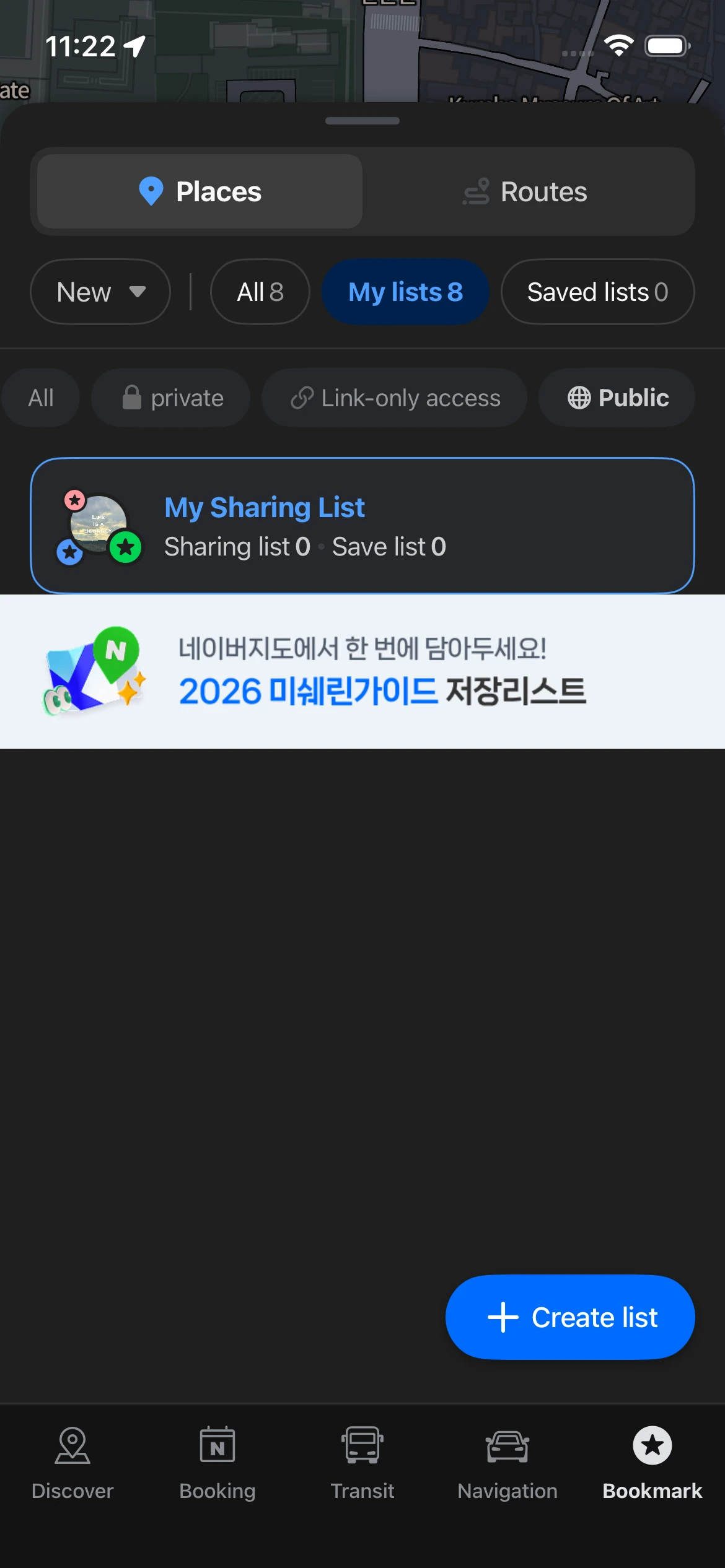
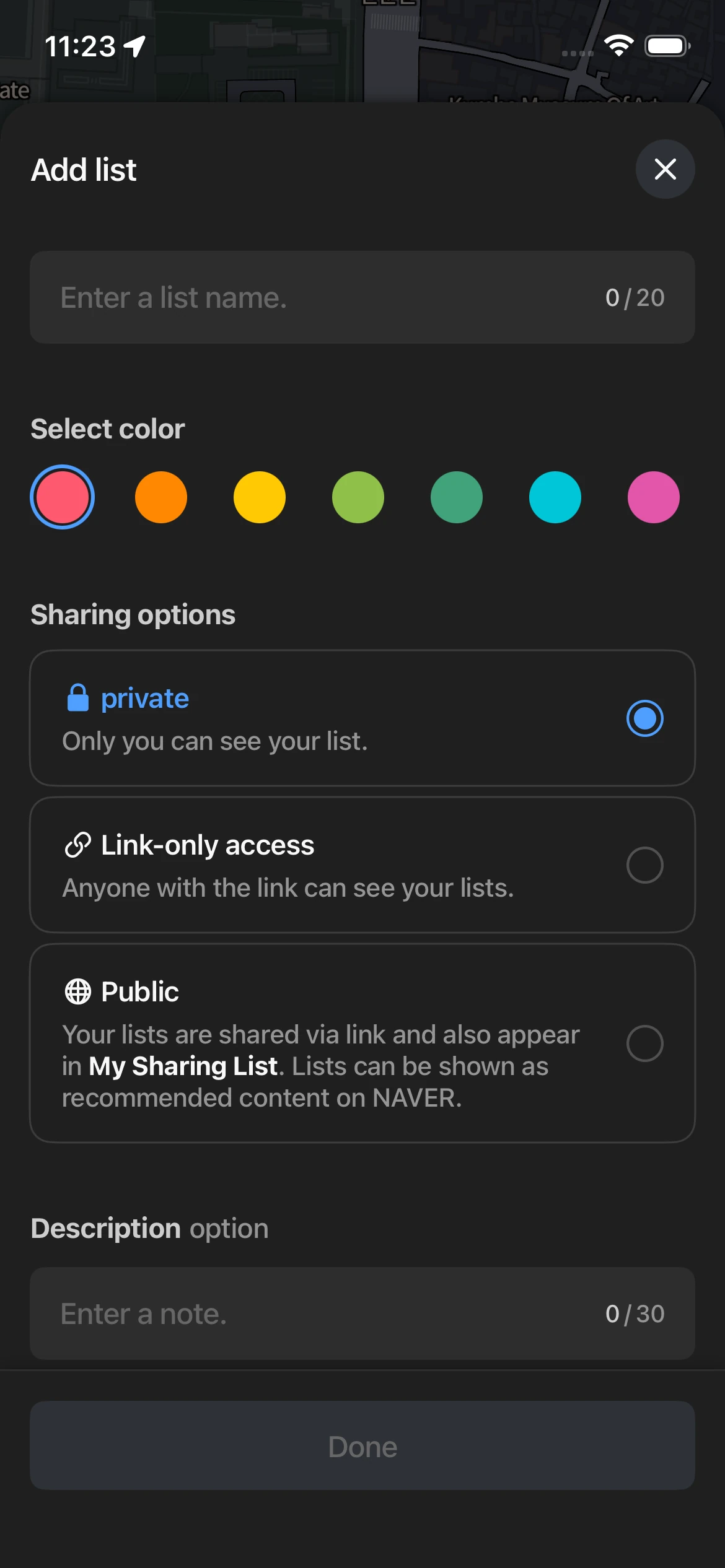
Open the app and tap the My tab at the bottom right. You’ll see “My Places” near the top — tap that. Now hit the “+” button (usually top right corner) to create a new list. Give it a name and pick a color. That color matters because every place you save to this folder will show up as that color pin on your map.
Quick tip: the app limits folder names to 20 characters, so keep it short. “Day 1 – Myeongdong” works. “Day 1 – Myeongdong Shopping and Street Food Adventure” doesn’t.
Two Ways to Organize Your Korea Travel Route Planning
I’ve seen travelers do this two ways, and honestly both work — it’s about what clicks for you.
Option 1: Organize by Day
- Day 1 — Arrival & Myeongdong (red pins)
- Day 2 — Gyeongbokgung & Bukchon (blue pins)
- Day 3 — Hongdae & Yeonnam (green pins)
- Day 4 — Itaewon & Hannam (yellow pins)
- Backup List (gray pins for “if we have time” spots)
This is great if you’ve already blocked out your days and know roughly where you’ll be when. The colors help you see at a glance whether tomorrow’s plans are clustered together or spread out.
Option 2: Organize by Category
- 🍜 Must-Eat Restaurants (red)
- ☕ Cafés (yellow)
- 🏛️ Sights & Museums (blue)
- 🛍️ Shopping (purple)
- 🌙 Night Views (navy)
This works better if you’re still figuring out your daily schedule. You can see all your food spots at once, then drag them into day-specific plans later. I used this method on my first Korea trip and it was honestly less stressful — I wasn’t locked into a rigid schedule.
You can also mix both approaches. Make day folders, then use the notes feature (we’ll get to that in a sec) to tag each place with its category. Do whatever keeps you sane.
Saving Places and Adding Notes
Now that you’ve got your naver map folders for travel set up, let’s actually fill them with places. This is where the magic happens.
How to Save Places on Naver Map
Search for any place — let’s say “Gwangjang Market.” Tap the result. On the place’s detail page, you’ll see a Save button or a heart icon (depends on your app version). Tap it, then choose which folder to save it to. Done. That spot now shows up as a colored pin on your map.
You can save from search results, from the “Around” tab when you’re exploring nearby spots, or even by long-pressing directly on the map if you see something interesting. The system’s flexible like that.
Adding Notes — The Feature You’ll Actually Use
Here’s what separates a mediocre travel plan from a great one: notes. When you’re standing outside a restaurant at 2 PM and they’re closed for break time, you’ll wish you’d written that down. Naver lets you add notes to each saved place, and I can’t stress enough how useful this is.
When you save a place, tap “Add note” (or edit it later from your saved list). Here’s what I typically jot down:
- “Opens 10 AM / Break time 2-5 PM — don’t go at lunch”
- “Reservation required — call 02-XXXX-XXXX”
- “Ask for 2nd floor window seat”
- “Cash only, ATM in next building”
- “Order the cream pasta, not the tomato”
- “Closes early on Mondays”
You’re basically leaving breadcrumbs for Future You, who’s tired, hungry, and doesn’t want to Google this stuff again. The notes show up immediately when you tap the pin on the map — no digging through your phone’s notes app or screenshots.
Visualizing Your Route to Avoid Backtracking
Okay, you’ve saved 20 amazing spots across Seoul. Now comes the reality check: your current plan has you going back and forth between distant neighborhoods on the same day. I see this constantly, and it’s fixable once you actually look at the map.
Spotting Inefficient Routes
Are you ping-ponging across the city? Zoom out if needed. If you see patterns like this, it’s time to reorganize:
- Red pins (restaurants) clustered in three different neighborhoods
- Two blue pins (sights) that are 40 minutes apart scheduled back-to-back
- A yellow pin (café) that’s literally next to yesterday’s red pin
The fix? Group nearby pins into the same day. Drag that random café from Day 3 into Day 2 if it’s next to where you’ll already be. You’ll cut your transit time in half and actually enjoy walking between spots instead of living on the subway.
Calculating Travel Time Between Stops
Once you’ve got a rough order, check how long it actually takes to get from place to place. Tap any saved place, hit Directions, then enter your next stop. Naver Map will show you:
- Subway time + walking (usually most accurate)
- Bus options (sometimes faster, but harder if you don’t read Korean)
- Taxi estimate (price in KRW, helpful for late nights or groups of 3-4)
- Walking time (often underestimated in Korea because people walk FAST)
Here’s a sample day I planned for a friend visiting Seoul — all in Jongno-gu so minimal transit:
- 10:00 — Leave hotel in Myeongdong → Gyeongbokgung Palace (subway, 20 min)
- 12:30 — Walk to Bukchon Hanok Village (15 min walk)
- 14:00 — Café in Anguk (5 min walk)
- 15:30 — Insadong browsing (10 min walk)
- 17:00 — Gwanghwamun Square (15 min walk)
- 19:00 — Dinner back in Myeongdong (subway, 20 min)
Total transit time? About 1 hour 25 minutes for the whole day. Compare that to a sprawling itinerary hitting five different neighborhoods — you’d spend half your day underground.
Fair warning: Korean restaurants and museums often close for break time (usually 3-5 PM for restaurants, or random midday closures for small shops). If Naver shows a place is “closed” when you tap it, check the hours — don’t assume it’s closed permanently. This tripped me up my first week here.
Finding Restaurants with Verified Reviews
You’re going to spend half your trip eating (if you’re doing Korea right), so let’s talk about finding actual good food instead of tourist traps. Naver Map has this thing called 영수증 리뷰 — “receipt reviews” — and it’s honestly genius.
What Are Receipt Reviews?
Unlike Google or Yelp where anyone can leave a review, Naver makes people prove they actually went to the restaurant by uploading their receipt. The system verifies the transaction, and only then can you write a review. It’s not perfect (nothing is), but it filters out a ton of fake hype. As of 2026, Naver Corp has been tightening these verification systems even more.
You don’t need a Naver account to read reviews — just search for a place and scroll down. The reviews are in Korean, but you can screenshot and translate them, or just look at the star distribution and food photos (which are usually more helpful anyway).
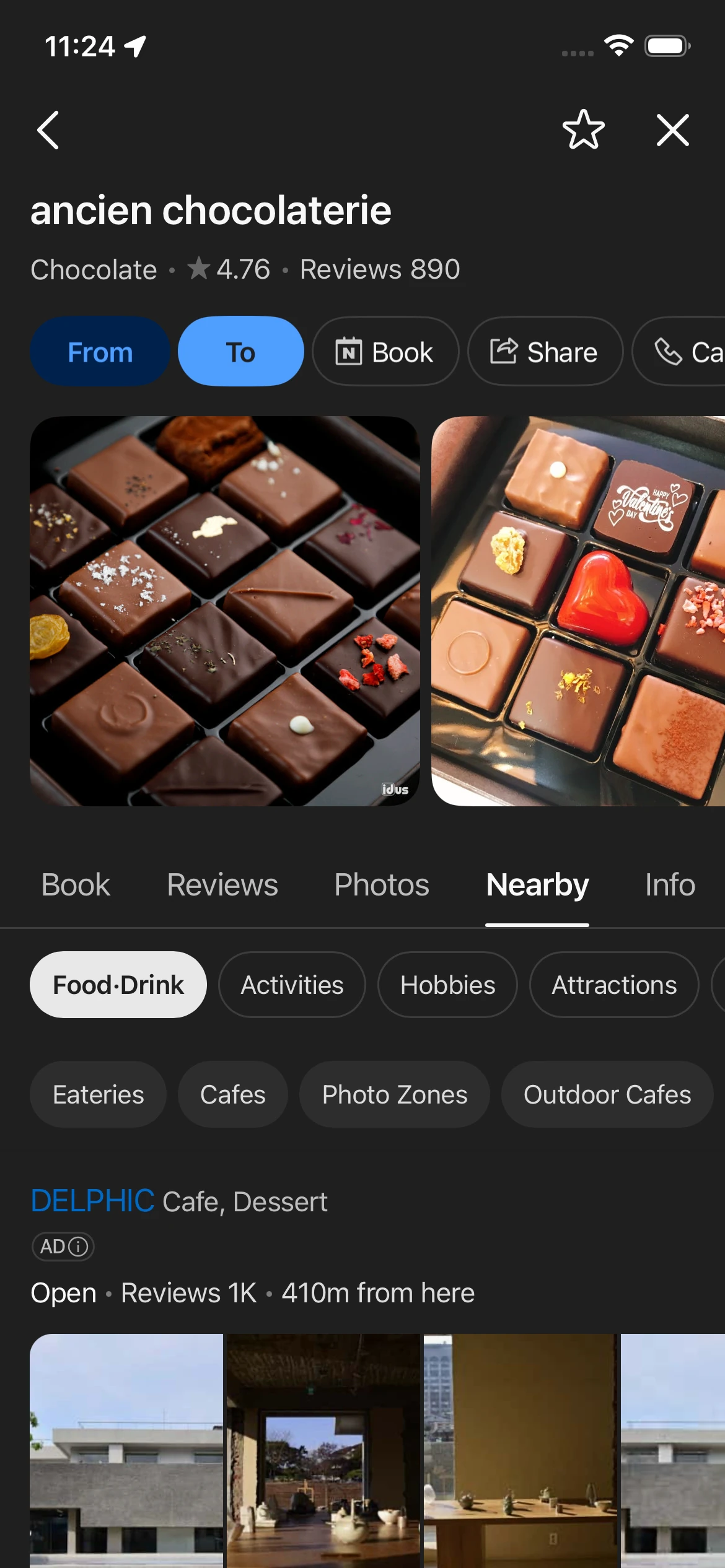
Two Ways to Find Restaurants
Method 1: Use the “Around” Tab
Tap Around at the bottom of the screen. Pick a category like “Restaurants” or “Cafés.” The map will populate with nearby options, and you can filter by “Open Now” or sort by rating. This is perfect when you’re already out and suddenly hungry — I use it constantly in unfamiliar neighborhoods.
Method 2: Direct Search
If you know what you want, just search it:
- Restaurant name in Korean (copy-paste from your research): “봉피양 본점”
- Phone number (works if you found a place on Instagram without English info)
- Category + area: “Gangnam Italian restaurant” or “Itaewon brunch”
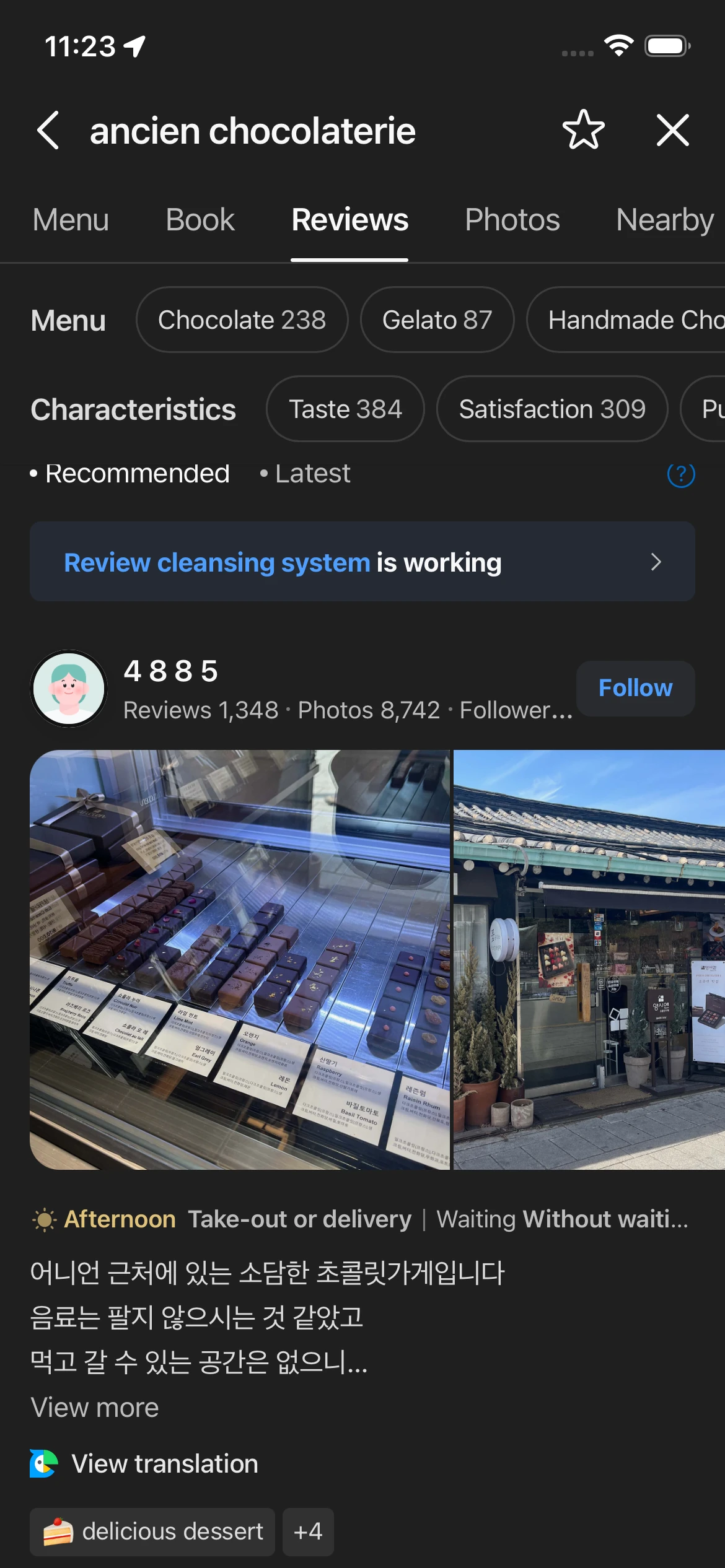
What to Check on Each Place’s Page
When you tap into a restaurant or café, here’s your checklist:
- Operating hours: Check for break time. Seriously. Korean restaurants love closing from 3-5 PM, and some small places close random weekdays.
- Receipt reviews & The Return of Star Ratings: Here’s a massive tip for 2026. Naver actually removed 5-star ratings a few years ago, replacing them with “keyword tags” (showing what people liked, like ‘Good vibe’ or ‘Friendly staff’). But breaking news: they are officially bringing star ratings back starting in April 2026! During this transition phase, look at the keyword tags to understand the restaurant’s vibe, but also start checking those newly updated star ratings. Generally, I look for places with 100+ verified receipt reviews.
- Menu photos: Real customer photos > professional promo shots. Scroll through to see what people actually ordered and what portions look like.
- Popular times: The little graph showing when it’s busy. Avoid the red zones unless you like waiting in line (some places are worth it, most aren’t).
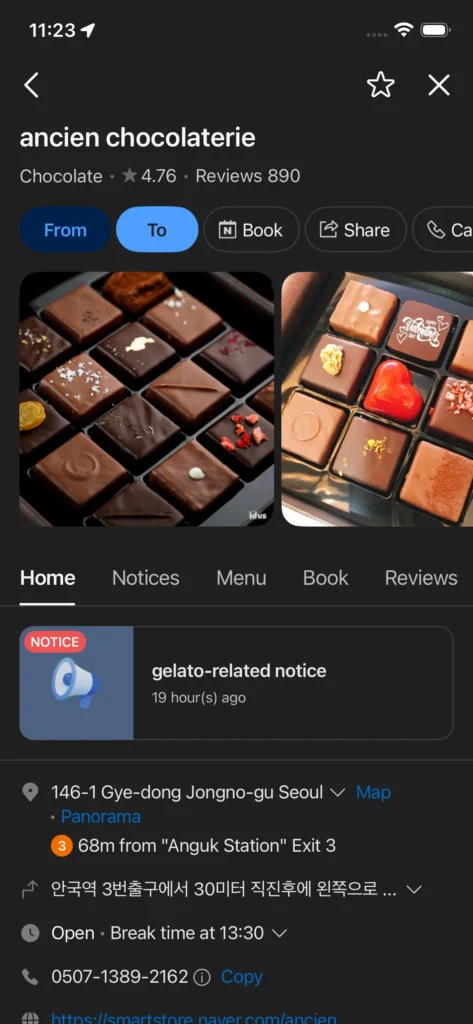
- Transit info: Naver shows the nearest subway exit with distance. “80m from Anguk Station Exit 3” is way more useful than a street address.
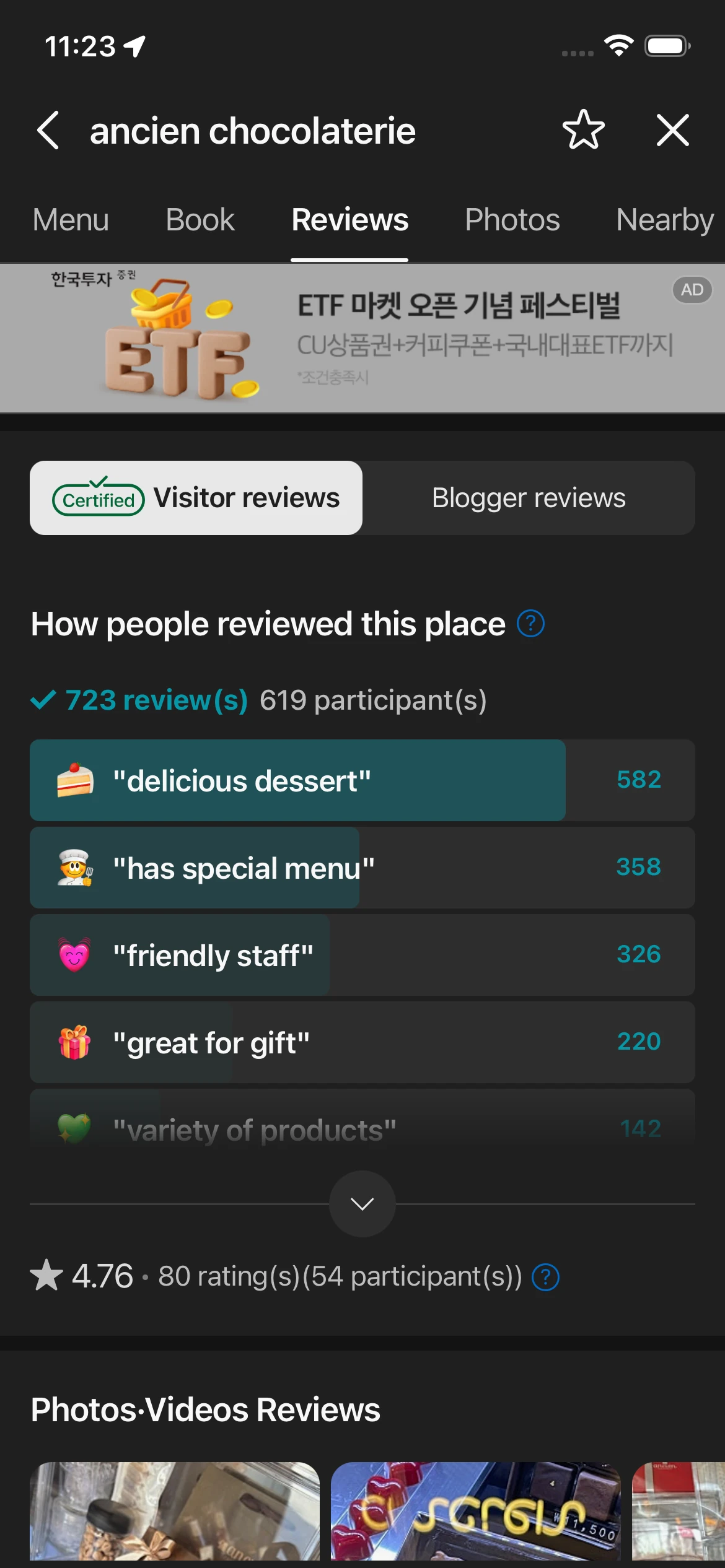
One more thing — if a place has tons of reviews but the recent ones are suddenly bad, skip it. Ownership might’ve changed, or quality dropped. Naver shows reviews chronologically, so sort by recent and skim the last month’s feedback.
FAQ
Can I share my Naver Map folders with friends?
Yep. When you create a folder, you can set it to “Private,” “Link-only access,” or “Public.” Choose link-only, then share the link with your travel buddies. They can view your saved places even without a Naver account — super handy for group trips where everyone’s researching different spots.
Does Naver Map work offline?
Short answer: No. Unlike Google Maps, Naver Map does not let you download offline regions for walking or public transit navigation. The app’s entire magic—live bus tracking, step-by-step alleyway navigation, and real-time restaurant hours—runs entirely on a live internet connection. Navigating Seoul without data is a fast track to getting horribly lost and frustrated.
Do Future You a massive favor and secure an unlimited data eSIM, physical SIM, or portable WiFi before you leave the airport (they run about $2-3 USD a day). (💡 Pro tip: You can usually book an unlimited tourist eSIM in advance at a discount right here [Insert Your Affiliate Link].)
How many places should I save per day?
Realistically? 3-4 main stops plus 1-2 backup options. First-timers always overpack their itineraries — I did too. Factor in transit time, inevitable photo stops, getting lost once or twice, and meals taking longer than expected. A relaxed day beats a rushed one where you saw everything but enjoyed nothing.
Can I use Naver Map for other Korean cities besides Seoul?
Absolutely. The app covers the whole country — Busan, Jeju, Gyeongju, you name it. The folder system works the same everywhere, and transit directions include KTX trains and intercity buses. I’ve used it to plan Busan beach days and Jeju road trips without any issues. For more about Seoul-specific transit features, our subway and bus guide has you covered.
So there you have it — naver map itinerary planning korea from start to finish. Once you get your folders organized and a few days planned out, you’ll actually feel prepared instead of winging it with a chaotic screenshot collection. The app’s not perfect (the English translation still misses things sometimes), but it’s genuinely the best tool for the job if you’re spending any real time in Korea.
Next time we’ll cover KTX booking, connecting Naver with Kakao T for taxis, and putting together a full pre-trip planning workflow that doesn’t make you want to cry. Until then — save those places, color-code your chaos, and let me know in the comments if you run into any issues. Safe travels.